Naba Ahmed
December 26, 2025
Creating a professional, engaging video presentation doesn’t have to take hours. With the Prezi desktop app, you can transform an interactive presentation into a polished video in just minutes. It’s perfect for sharing your message anytime, anywhere.
In this guide, you’ll learn how to record a video in Prezi on your Mac, whether you want to narrate your presentation or appear on screen using Prezi Cameo.
Why record a video with Prezi?
Prezi combines AI-powered presentation design with a dynamic recording experience that goes far beyond static slides. Instead of traditional slide-by-slide videos, Prezi lets you:
- Create interactive, zooming presentations
- Record voice-only narration or appear on screen with Cameo
- Move freely through your presentation for a natural flow
- Save time with AI-assisted design and storytelling
Whether you’re presenting to clients, students, or a global team, Prezi videos help your message feel more human and engaging.
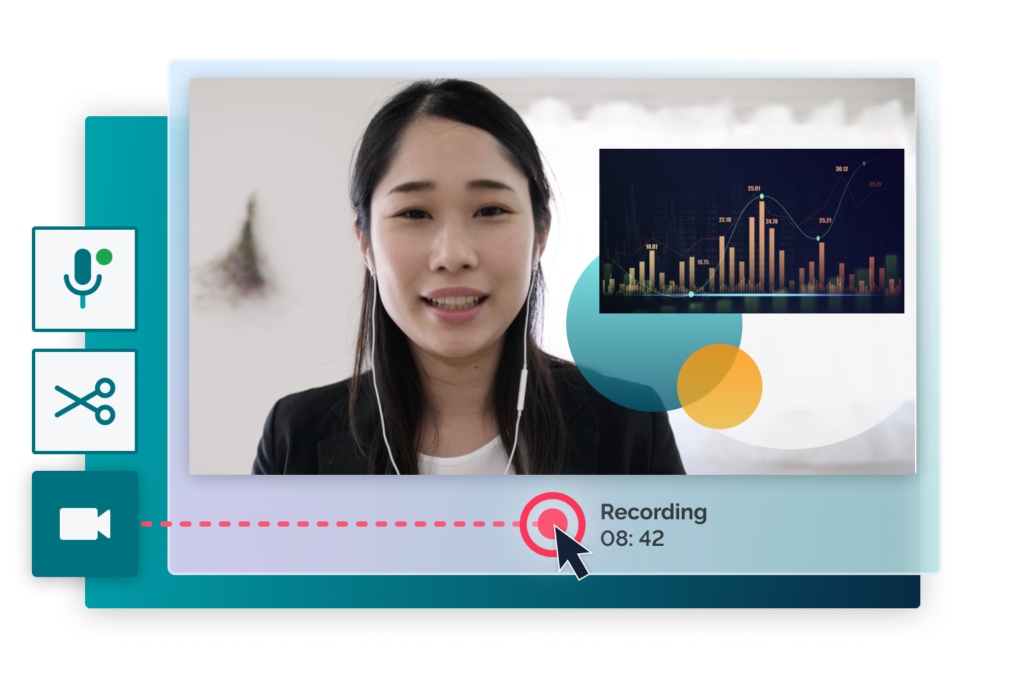
You can also arrange your content to appear next to you like a newscaster, making your presentations feel more immersive.
How to record a video in Prezi (Mac): step-by-step
1. Open the Prezi desktop app
Recording is available in the Prezi desktop app for Mac. From the Dashboard, click the video icon, or open a presentation and select:
Present → Record
This opens the Prezi recording studio.
2. Set up your recording studio
Inside the recording studio, you can customize your setup:
- Use the hamburger menu to show or hide:
- Presenter notes
- Next slides preview
- Select and allow access to your:
- Microphone
- Camera (if using Cameo)
This ensures your audio and video are ready before you start recording.
3. Choose narration or Cameo mode
Prezi gives you two recording options:
- Narration – record your voice only
- Cameo – appear on screen next to your presentation
If you choose Cameo, you can position yourself anywhere on the canvas and move your video during the recording.
4. Start recording your presentation
Click Start recording, then move through your presentation using:
- On-screen arrows
- Keyboard shortcuts
This allows for a smooth, natural storytelling experience instead of rigid slide transitions.
Need a break? You can pause and resume your recording at any time.
5. Preview, trim, and save your video
When you’re finished, click End recording.
From there, you can:
- Preview your video
- Trim the beginning or end
- Save the final version as a shareable file
That’s it — you’ve turned your interactive Prezi into a professional video.
Who can use Prezi for video recording?
Recording videos with Prezi AI is ideal for:
- Business professionals creating async presentations
- Educators recording lessons or flipped classroom content
- Creators and marketers sharing ideas visually
- Teams communicating updates without meetings
If you want your presentations to feel more engaging, personal, and dynamic, Prezi videos are built for you.
Start recording with Prezi today
With Prezi AI, you can design, record, and share interactive, AI-powered presentation videos — all in one place. 👉 Start for free at prezi.com and discover what’s possible with Prezi AI.
Frequently Asked Questions (FAQs)
How do I record a video in Prezi?
To record a video in Prezi, open the Prezi desktop app, select Present → Record, choose Narration or Cameo mode, and start recording your presentation in the Prezi recording studio.
Is Prezi video recording available on Windows?
Currently, recording videos with the Prezi desktop app is only available on Mac. You can record videos with Prezi using the Prezi Video desktop app, available on all computers.
What is Prezi Cameo?
Prezi Cameo lets you appear on screen next to your presentation while recording, creating a more personal and engaging video experience.
Can I pause or edit my Prezi recording?
Yes. You can pause and resume while recording, and after finishing, you can preview, trim, and save your video.
Can I share my Prezi video?
Yes. Once saved, your Prezi video becomes a shareable file you can send or upload anywhere.