Naba Ahmed
December 08, 2025
Let’s get straight to the point: Can you type a prompt into ChatGPT and get a beautiful, ready-to-go presentation? Not exactly. ChatGPT can’t create visual files, so it won’t spit out a PowerPoint or Google Slides deck. What it can do is generate all the text-based components you need, from a compelling title to a detailed, slide-by-slide outline and even a full script. This is an incredible head start that can save you hours of work. The real skill is learning how to take that raw text and pair it with a powerful design tool. This article will walk you through the practical steps for effective ChatGPT presentation creation, showing you how to turn AI-generated content into a presentation you’re proud to deliver.
Can ChatGPT create a presentation?
So, can you just ask ChatGPT to make a presentation for you? The short answer is yes—and no. While ChatGPT is a powerhouse for generating text, outlines, and ideas, it can’t create a visual slideshow on its own. It’s a language model, which means it works with words, not with slide layouts, color palettes, or image placement. It can give you a fantastic script or a detailed outline for each slide, but you’re still left with the task of manually building the presentation deck.

That’s where dedicated AI presentation tools come in. Think of them as the bridge between ChatGPT’s brilliant text and a visually compelling, finished presentation. These platforms take the text-generation capabilities of AI and pair them with smart design automation. You provide a simple prompt—like “Create a presentation on the benefits of remote work”—and the AI handles the rest. It structures the content into a logical flow, writes the headlines and body text for each slide, and even suggests relevant visuals to match your topic. This combination of AI-driven content and design is what makes it possible to go from a single sentence to a complete, ready-to-present deck in minutes. It’s a completely new way to build your presentation that saves time and helps you get your ideas out into the world faster.
What are AI-powered presentations?
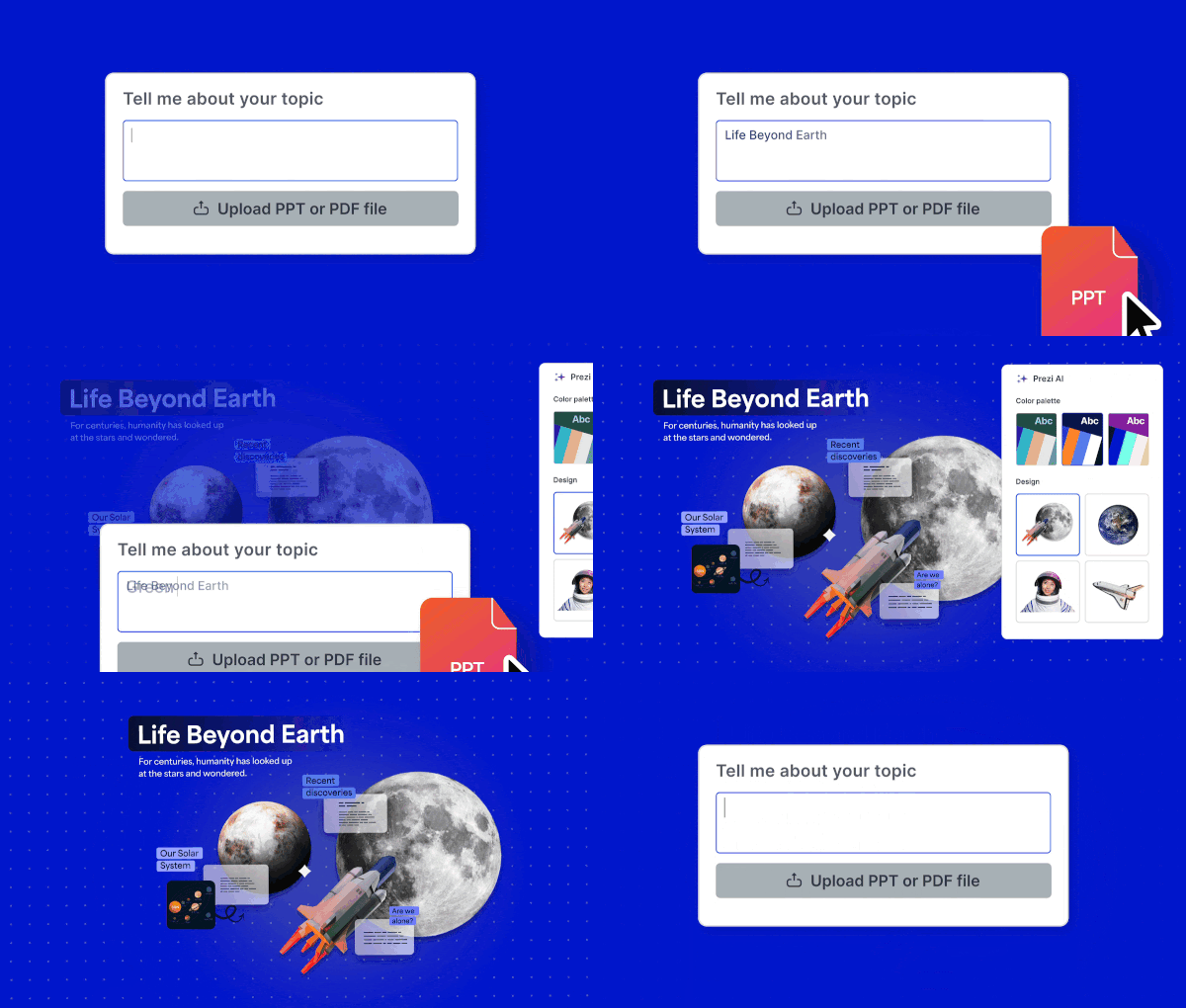
At their core, AI-powered presentation tools are designed to automate the most time-consuming parts of creating a slideshow. Instead of starting with a blank template and building each slide manually, you give the AI a topic or a prompt. The tool then generates a complete presentation, including a title slide, an agenda, content slides with text and images, and a concluding slide. Many tools, like Prezi AI, are built specifically to turn your ideas into polished presentations. The goal is to take the friction out of the creation process, letting you focus on your message instead of getting stuck on formatting.
How AI helps you present better
The biggest benefit of using AI is speed, but it goes much deeper than that. AI presentation makers are fantastic for breaking through creative blocks. If you’re staring at a blank screen, you can use AI to generate a first draft, giving you a solid foundation to build upon. From there, you can refine the content and add your personal touch. AI tools can also help you tailor your content to a specific audience by suggesting relevant talking points and structures. By handling the initial research, outlining, and design, AI acts as a creative partner, freeing you up to concentrate on what truly matters: delivering a compelling and confident presentation.
What to look for in an AI presentation tool
When you’re ready to try an AI presentation maker, you’ll find plenty of options out there. But they aren’t all built the same. The right tool should feel like a creative partner, helping you brainstorm, structure, and design your slides without taking away your unique voice. It’s about finding a balance between powerful automation and flexible control. A great AI tool doesn’t just spit out a generic deck; it gives you a fantastic starting point that you can easily refine and personalize.
As you explore different platforms, think about your entire workflow, from the initial idea to the final presentation. You’ll want a tool that not only generates compelling content but also offers smart design suggestions that align with your message. The goal is to find a solution that streamlines the tedious parts of presentation building, like formatting and layout, so you can focus on what truly matters: delivering a story that connects with your audience. Look for features that let you guide the AI, review its suggestions, and seamlessly integrate the final product with the other tools you use every day. The best platforms understand that AI is a starting point, providing a solid foundation that saves you hours of work while still leaving room for your expertise and creativity to shine through.
Content generation
The main draw of an AI presentation tool is its ability to generate content from a simple prompt. You give it a topic, and it produces a structured outline and slide-by-slide text. The best tools use powerful language models to create content that is not only relevant but also engaging and well-organized. Instead of staring at a blank slide, you get a complete draft in minutes. This feature is a huge time-saver, handling the initial research and writing so you can jump straight into refining your message and adding your personal insights.
Design and layout options
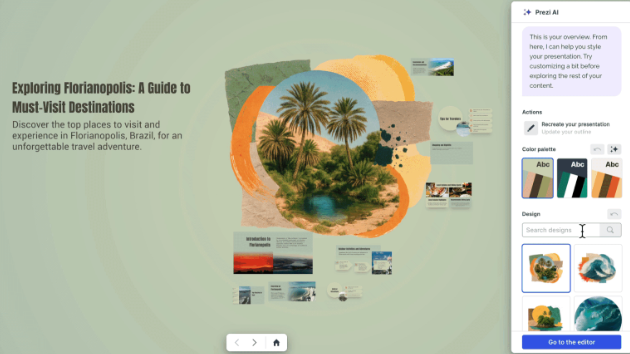
A wall of text won’t hold anyone’s attention for long. That’s why strong visual design is crucial, and a good AI tool knows it. Look for a platform that automatically suggests professional layouts, complementary color schemes, and appropriate fonts. Some tools can even select and place relevant images for you, turning your text into a visually compelling story. This automated design process ensures your presentation looks polished and cohesive, even if you don’t have a background in graphic design. It helps you create a presentation that is both informative and beautiful.
Customization tools
AI should be your assistant, not your boss. While automated generation is great, you need the ability to make the presentation your own. The best AI tools provide an outline or draft that you can edit before the final slides are created. You should be able to tweak the text, change the structure, and swap out images easily. This level of control ensures the final product reflects your voice and meets your specific goals. A tool that offers robust customization options gives you the perfect blend of AI efficiency and human creativity.
Integrations with other apps
Your presentation tool shouldn’t exist in a vacuum. To make your workflow as smooth as possible, look for a tool that integrates with the software you already use. For example, some AI tools can save your presentation directly to Google Slides or export it as a PowerPoint file. This saves you the hassle of manually transferring content and reformatting slides. Seamless integrations mean you can create your presentation with AI and then easily share and collaborate with your team using your preferred platforms, like the ones available with Prezi for Teams.
Two ways to create an effective presentation with ChatGPT
Using ChatGPT to create a presentation is more than just a one-step command. Think of it as a collaboration where you guide the AI to produce a draft that you can then perfect. By following a clear process, you can use this powerful tool to move from a blank page to a compelling presentation in record time.
Start with the AI presentation maker, Prezi AI
If your goal is speed and a strong-looking first draft, go straight into Prezi AI and treat the prompt like your creative brief.

The best times to use Prezi AI are when you need a deck quickly (meeting, pitch, internal update), you have a clear topic but don’t want to start from a blank page, or you want the AI to handle both structure + design from the start.
Here’s how to get started:
- Write a great prompt. Include:
- Audience: Who is this for?
- Goal: What should they think/feel/do after?
- Context: What’s the situation or problem?
- Tone: Professional, playful, persuasive, educational, etc.
- Length: Number of slides/sections
- Must-include points: 3–5 key ideas, metrics, examples, CTA
- Generate the deck in Prezi AI.
- You’ll get a structured flow and a designed first version.
- Make customizations as needed
- Ready to present!
Here’s an example for what you could drop directly into Prezi AI:
“Create a 10-slide presentation for mid-market marketing leaders explaining how interactive, non-linear presentations increase audience engagement. Include: (1) a strong hook, (2) the problem with traditional slide decks, (3) 3 key engagement principles, (4) 2 real-world examples, (5) a simple framework teams can use, and (6) a clear call to action. Tone: confident, practical, and friendly.”
Start with ChatGPT and then move into Prezi AI
If you want the content to be sharper—especially for higher-stakes decks—use ChatGPT first to craft the narrative and slide plan, then “hand it off” to Prezi AI for design and structure.
This use case works when you want to narrow down the storyline and positioning, you have a complex topic, or you want to control the arc before design begins.
Here’s how to create a presentation using ChatGPT and Prezi AI:
- Generate a strong slide-by-slide outline in ChatGPT.
Ask for:- Slide titles
- Key bullets (3–5 max per slide)
- Speaker notes (30–60 seconds per slide)
- Suggested visuals per slide (charts, icons, metaphors)
- Edit and fact-check.
- Verify stats, dates, claims, names.
- Replace vague claims with specific evidence.
- Match the tone to your audience and brand voice.
- Paste the refined outline into Prezi AI.
- Prezi AI turns your text structure into a designed, visual narrative.
- Make final customizations in Prezi AI
Here’s an example for what you could drop directly into ChatGPT:
“Write a 10-slide presentation outline on [TOPIC] for [AUDIENCE]. Goal: [WHAT THEY SHOULD DO/DECIDE]. Tone: [TONE]. Include: hook, agenda, problem, insight, 3 key points, proof/examples, objections & responses, summary, call to action, Q&A. For each slide provide: title, 3–5 bullets, 45 seconds of speaker notes, and 1–2 visual suggestions.”
From there, you can drop the outline into Prezi AI, and watch what it generates. Once your content is organized, your design is polished, and your team has given their input, it’s time to share your work. How you export and present your final deck matters. While some tools can send your presentation to standard formats, you should consider how you want your audience to experience it. For a more engaging and personal delivery, you can use a tool like Prezi Video to present your content right alongside you on screen. This is perfect for virtual meetings or recorded presentations where making a personal connection is key. With Prezi AI, you can export your presentation as a PDF or PowerPoint.
Tips for prompt creation
The quality of your AI-generated presentation starts with the quality of your instructions. Vague prompts lead to generic results. Instead of asking for “a presentation on marketing,” be specific. Try something like, “Generate a 5-slide outline for a presentation on our Q3 social media strategy for an internal marketing team. Include a title, an agenda, a review of Q2 KPIs, a slide on the new strategy, and a Q&A slide.” This level of detail helps the AI understand your audience, goals, and the exact content you need to build.
Structure your content
Once you have your core ideas, use ChatGPT to create a logical flow. A well-structured presentation guides your audience through your message without confusion. Ask the AI to organize your points into a classic narrative structure: introduction, rising action, climax, and conclusion. You can also ask it to generate speaker notes for each slide or suggest smooth transitions between topics. This ensures your presentation isn’t just a collection of facts but a cohesive story that keeps your audience engaged from start to finish.
Select your visuals
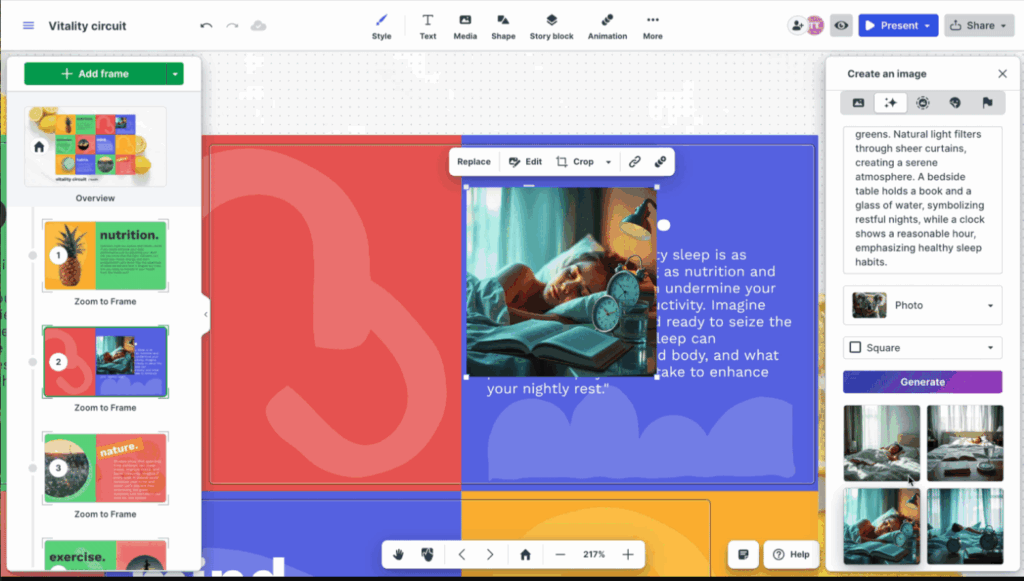
While ChatGPT is a language model, it can be your creative partner for visuals. It can’t create images for you, but it can give you great ideas. Describe a slide’s content and ask, “What are three visual concepts for this slide?” It might suggest a bar chart to show growth, an icon to represent a key idea, or a specific type of stock photo to evoke an emotion. This helps you move beyond basic text and find the right design elements to make your message more memorable and impactful. You can use Prezi’s AI image generator if you want to skip this step.
Review and refine
Your AI-generated content should always be treated as a first draft. The final, crucial step is to review and refine everything. Read through the text to check for accuracy, especially with data or statistics. Adjust the tone to match your personal speaking style and your brand’s voice. Does it sound like you? Most importantly, make sure the final presentation aligns with your core objective. This human touch is what transforms a good AI draft into a great presentation that you can deliver with confidence.
Handle common AI presentation challenges
AI presentation tools are incredible time-savers, but they aren’t magic wands. Like any powerful tool, they come with their own set of quirks. Knowing how to handle these common challenges is the key to moving from a good AI-generated draft to a great final presentation. Think of yourself as the director and AI as your talented but sometimes unpredictable assistant. Your job is to guide its output, polish the rough edges, and add the human insight that makes your message resonate. By anticipating these potential hurdles, you can use AI more effectively and create a presentation that truly stands out.
Simplify complex topics
One of AI’s biggest strengths is its ability to process huge amounts of information and break it down. If you’re tackling a dense or technical subject, ask the AI to explain it in simpler terms, create an analogy, or outline the key takeaways for a beginner. AI tools can personalize content to fit your audience’s level of understanding. Use this as your starting point. Then, layer in your own expertise and stories to make the complex ideas not just simple, but also memorable and engaging. You know your audience best, so you can refine the AI’s output to perfectly match their needs.
Fact-check your content
This is a non-negotiable step. AI models are trained on vast datasets, but they don’t “know” things in the way a human does. They can make mistakes, misinterpret data, or even generate information that sounds plausible but is completely incorrect. Because of these known limitations, you must act as the final editor and fact-checker. Always verify statistics, dates, names, and critical facts with trusted sources before you present. Your credibility is on the line, and a quick check can save you from sharing inaccurate information with your audience.
Work around design limitations
While AI is getting better at visual design, some tools still produce generic or uninspired layouts. If your AI tool generates fantastic content but the design falls flat, don’t feel stuck. The best approach is to combine AI’s content generation with a powerful design platform. Copy the text generated by ChatGPT and bring it into a tool like Prezi, where you have full creative control. This allows you to use AI for the heavy lifting of research and writing, while you focus on creating a visually stunning and dynamic presentation that captures your unique style.
Troubleshoot technical issues
Technical glitches can pop up when you’re moving from an AI tool to your final presentation format. You might encounter formatting errors, font mismatches, or issues with image resolution. Always do a full technical run-through before you present. Click through every slide and check every element. It’s also important to be aware of the ethical considerations of using AI, especially in academic or professional settings. Some organizations have specific guidelines on AI usage, so make sure you’re following the rules and being transparent about how you used the technology to build your presentation.
Pro tips for a polished presentation
Using AI to generate your presentation is a fantastic head start, but the magic happens when you add your expertise. Think of the AI-generated text as your first draft—a solid foundation you can build upon. These tips will help you transform that draft into a compelling and polished presentation that truly connects with your audience.
Master the art of prompting
The quality of your AI-generated presentation starts with the quality of your prompt. To get the best results, be as specific as possible. Instead of asking for “a presentation about marketing,” try a detailed prompt like, “Create a 10-slide presentation outline for a marketing team meeting. The topic is our Q3 social media strategy. The tone should be professional but engaging, and the audience is familiar with our brand.” Providing context, defining your audience, and specifying the desired tone will give the AI clear direction and help you build a stronger foundation for your content.

Refine your AI-generated content
Once you have your AI-generated text, it’s time to make it your own. Read through everything to check for accuracy and ensure the information is current. AI tools are powerful, but they can sometimes make mistakes or pull outdated data. Tweak the wording to match your unique voice and speaking style. This is also the perfect time to weave in personal anecdotes, specific data points from your work, or relevant case studies. This step is crucial for turning a generic script into a message that feels authentic and credible.
Add your personal design touch
Great content deserves a great design. While ChatGPT provides the text, the visual element is up to you. Move your refined content into a presentation tool that allows for creative expression. Focus on creating a clean, uncluttered layout with visuals that support your key points. Use high-quality images, consistent branding, and a readable font. With Prezi’s AI presentation maker, you can instantly generate a fully designed presentation from a simple prompt, then easily customize every aspect to fit your personal style and perfect your design.
Perform a final quality check
Before you present, do one last review. Read your entire presentation out loud to catch awkward phrasing and check the overall flow. Make sure your key messages are clear and easy to follow from one slide to the next. It’s also a great idea to have a colleague or friend look it over for a fresh perspective. This final check ensures there are no typos or inconsistencies, helping you feel confident and prepared to deliver your presentation effectively.
How AI is Changing Presentations
AI is quickly becoming an indispensable partner in the presentation process. It’s not just about creating slides faster; it’s about rethinking how we approach brainstorming, structuring content, and designing visuals. By handling the initial heavy lifting, AI frees you up to focus on what truly matters: your message, your story, and your connection with the audience. Understanding what AI excels at, where it falls short, and how to integrate it with your favorite platforms is the key to making your best presentation yet.
What AI can do now
Think of AI as your personal brainstorming assistant. You can start with a single prompt, and within minutes, have a complete outline with talking points and slide-by-slide content. This ability to fast-track your workflow is a game-changer, especially when you’re short on time. Modern AI tools can also personalize content for a specific audience, ensuring your message is relevant and impactful. Many platforms, including Prezi AI, can instantly generate a first draft of your presentation, complete with layouts and visuals, saving you hours of setup. It’s the perfect way to get past that initial blank-page paralysis and jump straight into refining your ideas.
What AI still can’t do
For all its power, AI has its limits. It doesn’t have your unique experiences, your industry expertise, or your personal passion for the topic. AI can sometimes lack a deep understanding of complex or nuanced subjects, which means the content it generates needs a human touch to ensure accuracy and depth. It can’t read the room or tailor a point on the fly based on audience reactions. This is where you shine. Your role is to fact-check the AI’s output, inject your personality, and weave in compelling stories that resonate on an emotional level. AI provides the foundation, but you provide the heart.
Pair AI with your favorite tools
The most effective approach is to use AI as part of a larger toolkit. The real magic happens when you combine the content-generating power of AI with the sophisticated design capabilities of a dedicated presentation platform. You can use a tool like ChatGPT to generate your script or key points, then bring that text into a tool like Prezi to transform it into a visually stunning and engaging presentation. This hybrid approach gives you the best of both worlds: the speed and efficiency of AI for content creation and the creative control and dynamic visuals of a specialized design tool for making your final presentation truly memorable. Get started with Prezi AI today.
Frequently Asked Questions
So, can ChatGPT make a visual presentation file for me, or just the text? ChatGPT is a language tool, so its expertise is in generating words. It can write a fantastic script, create a detailed outline, and even suggest speaker notes for each slide. However, it can’t create a visual file like a PowerPoint or a Prezi on its own. You’ll need to take the text it generates and bring it into a dedicated presentation tool to handle the design, layout, and visuals.
Why shouldn’t I just copy and paste what an AI tool gives me? Think of the AI-generated content as a strong first draft, not the final product. Your unique voice, personal stories, and specific expertise are what make a presentation truly compelling. The initial AI output can sound a bit generic, so your job is to review it, check the facts, and infuse it with your personality. This refinement step is what transforms a good presentation into a great one that connects with your audience.
What’s the biggest mistake people make when using AI for presentations? The most common pitfall is blindly trusting the information the AI provides. AI models can sometimes generate incorrect or outdated facts, even if they sound convincing. Always take a few minutes to fact-check any data, statistics, or key claims with reliable sources. Your credibility is on the line, and that final human review is a non-negotiable step to ensure your content is accurate.
Do I still need to be a good designer to use these tools? Not at all, and that’s one of their biggest benefits. AI presentation makers are designed to handle the heavy lifting of design for you. They automatically suggest professional layouts, color palettes, and even relevant images, giving you a polished look without needing a background in graphic design. You still have the creative freedom to make adjustments, but you get to skip the frustration of starting with a blank canvas.
Is it okay to use AI for a work or school presentation? Generally, yes, but it’s wise to be transparent and check for any specific guidelines from your company or institution. Most people view AI as a productivity tool that helps you brainstorm and structure your ideas more efficiently. The key is that you are still the one in control. You’re responsible for fact-checking the content, refining the message, and ultimately delivering the final presentation with confidence.
Can Prezi AI create a full presentation from a single prompt? Yes. Prezi AI can generate a complete first-draft presentation—including structure, slide titles, key points, and a designed layout—based on a prompt. You’ll still want to review and personalize it (tone, examples, data, and visuals) before presenting.
Is it better to start in Prezi AI or start in ChatGPT? Start in Prezi AI when you want the fastest path to a designed deck and you have a clear topic. Start in ChatGPT when you want tighter control over the narrative (especially for pitches, strategy, or complex topics), then paste your outline into Prezi AI for design.
Can I paste a ChatGPT outline into Prezi AI? Yes—and it’s one of the strongest workflows. Use ChatGPT to produce a slide-by-slide outline (titles + bullets + speaker notes), refine it, then paste it into Prezi AI to turn it into a polished, visual presentation.